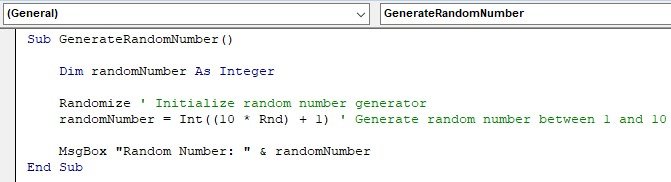
When you're building sophisticated simulations, crafting interactive tools, or developing data models in Excel, the standard Rnd() function in VBA often hits its limits fast. You need more than just a random decimal between 0 and 1; you need control. You need to ensure numbers are unique, fall within precise ranges, or even allow users to define these parameters dynamically. This is where mastering Advanced Random Number Generation with VBA becomes indispensable, transforming simple randomness into a powerful, controlled analytical tool.
It's about moving beyond the basics to generate numbers that truly serve your application, whether you're creating a non-repeating lottery picker, a realistic data sample for testing, or a robust Monte Carlo simulation.
At a Glance: Key Takeaways for Advanced RNG in VBA
- Seed for Success: Use
Randomizeonce per macro run for varied sequences; understand how to control seeding for repeatability. - Precision in Range: Master the
Int((upperBound - lowerBound + 1) * Rnd + lowerBound)formula for inclusive integer ranges. - Eliminate Duplicates: Implement robust logic using array-based checks or
COUNTIFto guarantee unique numbers within a dataset. - Control Decimals: Easily specify the exact number of decimal places for your random numbers using the
Roundfunction. - User Empowerment: Design UserForms to allow dynamic input for ranges, uniqueness, and decimal precision, making your tools highly flexible.
- Know Limitations: VBA's
Rnd()is pseudo-random and not suitable for cryptographic security.
The Foundation: Unpacking VBA's Core Randomness
Before we dive into advanced techniques, a quick refresher on VBA's native random number capabilities is essential. At its heart, VBA offers the Rnd() function. This unassuming function produces a floating-point pseudo-random number X, where 0 <= X < 1. Think of it as drawing a number from an infinite pool between zero and just under one.
To ensure that your sequence of random numbers isn't the same every time you run your macro, you need to "seed" the random number generator. This is where Randomize comes in. Call Randomize once at the beginning of your code, and it initializes the generator using a seed derived from the system timer, leading to a different sequence each time. For more general information on how Excel generates random numbers, you might find our guide on the Excel random number generator particularly helpful.
vba
Sub BasicRandomNumberExample()
' Always call Randomize once at the start for a different sequence each run
Randomize
Dim randomNumber As Single
randomNumber = Rnd ' Generates a number between 0 and < 1
MsgBox "A basic random number: " & randomNumber
End Sub
For those rare instances where you need a repeatable sequence – perhaps for debugging or verifying simulation results – you can bypass Randomize or call Rnd() with a negative argument to reset the seed to a specific value.
Setting Up Your VBA Environment
If you're new to VBA, getting started is straightforward:
- Open the VBE: Press
Alt + F11from any Excel worksheet, or navigate to theDevelopertab and clickVisual Basic. - Insert a Module: In the VBE, go to
Insert>Module. This is where you'll type your VBA code. - Run Code: Place your cursor inside a Sub procedure (like
BasicRandomNumberExampleabove) and pressF5, or click the green "Run" arrow in the toolbar.
Precise Control: Random Integers Within Custom Ranges
Generating a random number between 0 and 1 is useful, but most real-world applications demand numbers within specific, often integer-based, boundaries. Whether you need a random roll of a die (1 to 6) or a score between 50 and 100, a simple formula provides this precision.
The universal formula for generating a random integer I where lowerBound <= I <= upperBound (inclusive) is:Int((upperBound - lowerBound + 1) * Rnd + lowerBound)
Let's break it down:
Rndgives us0 <= X < 1.(upperBound - lowerBound + 1)determines the total number of possible integers in your range (e.g., 1 to 6 is 6 numbers).- Multiplying
Rndby this range size((upperBound - lowerBound + 1) * Rnd)scales our0 <= X < 1to0 <= Y < rangeSize. - Adding
lowerBoundshifts this scaled number up, solowerBound <= Z < upperBound + 1. Int()truncates the decimal, giving us an integerlowerBound <= I <= upperBound.
vba
Sub GenerateRandomIntegersInRange()
Randomize ' Seed the generator once per run
Dim lowerBound As Long
Dim upperBound As Long
Dim i As Long
Dim randomNumber As Long
lowerBound = 1
upperBound = 20
Dim numToGenerate As Long
numToGenerate = 20 ' To generate 20 numbers
' Clear previous data for a fresh start
Range("A1:B10").ClearContents
For i = 1 To numToGenerate
' Generate a random integer between lowerBound and upperBound (inclusive)
randomNumber = Int((upperBound - lowerBound + 1) * Rnd + lowerBound)
' Place the number in the worksheet (e.g., A1:B10)
' This example fills A1 down to A10, then B1 down to B10
If i <= 10 Then
Cells(i, "A").Value = randomNumber
Else
Cells(i - 10, "B").Value = randomNumber
End If
Next i
MsgBox "Generated " & numToGenerate & " random integers between " & lowerBound & " and " & upperBound & "."
End Sub
This snippet directly addresses generating 20 random integers between 1 and 20 in the range A1:B10, demonstrating how to loop and populate a worksheet effectively.
The Challenge of Uniqueness: Generating Random Numbers Without Duplicates
In many scenarios – from assigning unique IDs to selecting winners without replacement – duplicate random numbers are unacceptable. Simply generating numbers and hoping for uniqueness is inefficient and unreliable. Instead, we need a method to actively check and prevent duplicates.
One common and relatively straightforward approach, especially for smaller datasets, involves generating a number and then checking if it already exists in your target range using the COUNTIF function. If it's a duplicate, you simply generate a new number until a unique one appears.
vba
Sub GenerateUniqueRandomIntegers()
Randomize ' Seed the generator
Dim lowerBound As Long
Dim upperBound As Long
Dim numToGenerate As Long
Dim i As Long
Dim uniqueNumber As Long
Dim targetRange As Range
Dim ws As Worksheet
Set ws = ThisWorkbook.Sheets(1) ' Assuming you're working on the first sheet
Set targetRange = ws.Range("A1:B10") ' The range where unique numbers will be placed
lowerBound = 1
upperBound = 20
numToGenerate = 20 ' We want 20 unique numbers
' Important: The number of unique numbers requested must not exceed the possible range
If numToGenerate > (upperBound - lowerBound + 1) Then
MsgBox "Cannot generate " & numToGenerate & " unique numbers within the range " & _
lowerBound & " to " & upperBound & ". Not enough unique values possible.", vbCritical
Exit Sub
End If
targetRange.ClearContents ' Clear previous data
For i = 1 To numToGenerate
' Loop until a unique number is found
Do
uniqueNumber = Int((upperBound - lowerBound + 1) * Rnd + lowerBound)
' Check if the number already exists in the target range
Loop While Application.WorksheetFunction.CountIf(targetRange, uniqueNumber) > 0
' Place the unique number in the worksheet
' This logic fills A1-A10, then B1-B10
If i <= 10 Then
ws.Cells(i, "A").Value = uniqueNumber
Else
ws.Cells(i - 10, "B").Value = uniqueNumber
End If
Next i
MsgBox "Generated " & numToGenerate & " unique random integers between " & lowerBound & " and " & upperBound & "."
End Sub
Considerations for Uniqueness:
- Performance: For very large datasets or very tight ranges (where unique numbers are scarce), the
Do Whileloop withCOUNTIFcan become slow. EachCOUNTIFcall involves scanning the range. - Alternative: Array-Based Shuffling: For optimal performance with large sets of unique integers, consider generating an ordered array of all possible numbers in your range, then shuffling that array randomly and picking the first
Nelements. This is significantly faster but more complex to implement. - Decimal Uniqueness: Generating unique decimal numbers is generally less problematic unless you specify a very low number of decimal places within a very small range, making collision likely. For example, 10 unique numbers between 0 and 1 with 2 decimal places (0.00, 0.01,... 0.99) is feasible; 10 unique numbers between 0 and 0.01 with 2 decimal places (0.00, 0.01 only) is not.
Mastering Precision: Specifying Decimal Places
When working with financial models, scientific simulations, or just wanting cleaner output, you'll often need to control the number of decimal places for your random numbers. VBA's Round function is perfect for this.
The Round(expression, [numdecimalplaces]) function takes a number and rounds it to the specified number of decimal places.
vba
Sub GenerateRandomNumbersWithDecimals()
Randomize ' Seed the generator
Dim lowerBound As Single
Dim upperBound As Single
Dim decimalPlaces As Long
Dim numToGenerate As Long
Dim i As Long
Dim randomNumber As Single
Dim uniqueNumbersFound As Long
Dim targetRange As Range
Dim ws As Worksheet
Set ws = ThisWorkbook.Sheets(1)
Set targetRange = ws.Range("A1:B10")
lowerBound = 1
upperBound = 20
decimalPlaces = 2 ' We want 2 decimal places
numToGenerate = 20 ' Generate 20 numbers
targetRange.ClearContents
uniqueNumbersFound = 0
For i = 1 To numToGenerate
Do
' Generate a random number (could be decimal) within the range
randomNumber = (upperBound - lowerBound) * Rnd + lowerBound
' Round it to the desired number of decimal places
randomNumber = Round(randomNumber, decimalPlaces)
' Check for uniqueness if required (as per example 20 unique with 2 dec places between 1 and 20)
' This part assumes you want unique numbers after rounding.
' The chance of duplicates increases with fewer decimal places and smaller ranges.
Loop While Application.WorksheetFunction.CountIf(targetRange, randomNumber) > 0
' Place the number in the worksheet
If i <= 10 Then
ws.Cells(i, "A").Value = randomNumber
Else
ws.Cells(i - 10, "B").Value = randomNumber
End If
Next i
MsgBox "Generated " & numToGenerate & " unique random numbers with " & decimalPlaces & _
" decimal places between " & lowerBound & " and " & upperBound & "."
End Sub
Notice how we combine Round with the previous range and uniqueness logic. The CountIf check is performed after rounding, which is usually what you want when controlling decimal places for uniqueness. Be mindful that rounding can create duplicates that didn't exist in the unrounded numbers.
Empowering Users: Dynamic Random Generation with UserForms
Hardcoding lowerBound, upperBound, and decimalPlaces into your VBA code makes it rigid. For true flexibility and user-friendliness, a UserForm provides a graphical interface for dynamic input. This allows anyone to specify the parameters for random number generation without touching the code.
Steps to Create a UserForm for Dynamic Input:
- Insert UserForm: In the VBE, go to
Insert>UserForm. A blank form will appear, along with the "Toolbox" of controls. - Add Controls:
- Labels: From the Toolbox, click the
Labelcontrol (looks like "A") and draw three labels on the form. Change theirCaptionproperty (in the Properties Window, usually bottom-left) to "Lower Bound:", "Upper Bound:", and "Decimal Places:". - Text Boxes: Click the
TextBoxcontrol (looks like "ab|") and draw three text boxes next to your labels. Important: Change theirNameproperty (e.g.,txtLowerBound,txtUpperBound,txtDecimalPlaces). These names are how you'll reference their values in your code. - Checkbox for Uniqueness: Add a
CheckBoxcontrol. Name itchkUniqueand set itsCaptionto "Generate Unique Numbers". - Command Button: Click the
CommandButtoncontrol (looks like "a|") and draw a button. Name itcmdGenerateand set itsCaptionto "Generate Random Numbers".
- Code the Command Button: Double-click the
cmdGeneratebutton on your UserForm. This opens the code window for that button'sClickevent. Insert the VBA logic here.
Here’s the VBA code for your UserForm'scmdGenerate_Clickevent:
vba
' In the UserForm's code module (e.g., UserForm1)
Private Sub cmdGenerate_Click()
Randomize ' Seed the generator once
Dim lowerBound As Single
Dim upperBound As Single
Dim decimalPlaces As Long
Dim numToGenerate As Long ' Let's fix this to always generate 20 for the example
Dim generateUnique As Boolean
Dim i As Long
Dim randomNumber As Single
Dim targetRange As Range
Dim ws As Worksheet
On Error GoTo ErrorHandler
Set ws = ThisWorkbook.Sheets(1) ' Target the first sheet
Set targetRange = ws.Range("A1:B10") ' A fixed range for output, or make this dynamic too!
' Read values from UserForm controls
lowerBound = CSng(txtLowerBound.Value)
upperBound = CSng(txtUpperBound.Value)
decimalPlaces = CInt(txtDecimalPlaces.Value)
numToGenerate = 20 ' As per example: Generate 20 numbers
generateUnique = chkUnique.Value ' Checkbox value (True/False)
' Basic validation
If lowerBound >= upperBound Then
MsgBox "Lower Bound must be less than Upper Bound.", vbExclamation
Exit Sub
End If
If decimalPlaces < 0 Then
MsgBox "Decimal Places cannot be negative.", vbExclamation
Exit Sub
End If
' Clear previous data
targetRange.ClearContents
' Handle unique generation check
If generateUnique Then
' Important: Check if enough unique numbers are possible within the range
Dim possibleUniqueValues As Long
' For decimals, this is trickier. Let's assume integers for this simple check.
' If decimalPlaces > 0, the number of possible unique values is theoretically very large.
' For simplicity with the 'CountIf' method, we'll assume integer uniqueness if decimalPlaces = 0.
If decimalPlaces = 0 Then
possibleUniqueValues = upperBound - lowerBound + 1
If numToGenerate > possibleUniqueValues Then
MsgBox "Cannot generate " & numToGenerate & " unique integers within the range " & _
lowerBound & " to " & upperBound & ". Only " & possibleUniqueValues & " unique values are possible.", vbCritical
Exit Sub
End If
End If
End If
For i = 1 To numToGenerate
Do
' Generate a random number
randomNumber = (upperBound - lowerBound) * Rnd + lowerBound
' Round if decimal places specified
If decimalPlaces >= 0 Then
randomNumber = Round(randomNumber, decimalPlaces)
End If
' If unique generation is requested, check for duplicates
If generateUnique Then
' This check might be slow for very large datasets, as discussed earlier
If Application.WorksheetFunction.CountIf(targetRange, randomNumber) > 0 Then
' If duplicate, loop and try again
Else
' Found unique, exit Do loop
Exit Do
End If
Else
' If not unique, no need to loop, just use the number
Exit Do
End If
Loop
' Place the number in the worksheet
If i <= 10 Then
ws.Cells(i, "A").Value = randomNumber
Else
ws.Cells(i - 10, "B").Value = randomNumber
End If
Next i
MsgBox "Random numbers generated successfully!", vbInformation
Me.Hide ' Hide the userform after generation
Exit Sub
ErrorHandler:
MsgBox "An error occurred: " & Err.Description & vbCrLf & _
"Please ensure all inputs are valid numbers.", vbCritical
End Sub - Show the UserForm: To make your UserForm appear, create a simple macro in a standard module:
vba
' In a standard module (e.g., Module1)
Sub ShowRandomNumberGeneratorForm()
UserForm1.Show ' Assuming your UserForm is named UserForm1
End Sub
Now, when you runShowRandomNumberGeneratorForm, your custom input form will appear, allowing users to define the bounds, decimal places, and whether they need unique numbers. This flexibility drastically improves the usability of your VBA tools.
Beyond the Basics: Advanced Tips and Best Practices
While Rnd() is a powerful tool, understanding its nuances and limitations is crucial for robust applications.
Seeding Management: The Art of Randomness Control
- One
RandomizeCall: As a general rule, callRandomizeonce at the very beginning of your main macro. Repeatedly callingRandomizewithin a loop can lead to less-than-truly-random sequences, especially if your loop runs faster than the system timer's resolution. The goal is to get a new seed for each run of your program, not for each number generated. - Custom Seeds for Repeatability: If you need a specific, repeatable sequence (e.g., for testing algorithms or demonstrating a fixed simulation result), you can explicitly set the seed:
Rnd -1will initialize the generator with the seed0,Rnd 100will use100as the seed, and so on. - Worksheet Function Caveats: If you encapsulate
Rnd()within a custom VBA function (UDF) called directly from worksheet cells, be aware that each cell's recalculation might re-seed the generator ifRandomizeis called within the UDF. This usually results in non-deterministic behavior, which is often undesirable for UDFs. Manage seeding externally in a macro if you need consistent behavior.
Validating Uniform Distribution
The Rnd() function, when used correctly with the Int() and scaling formulas, aims to provide a uniform distribution. This means every number within the specified range has an equal probability of being selected. For most applications, this is sufficient. However, for critical statistical analyses or simulations, you might want to perform statistical tests (e.g., Chi-squared test) to empirically validate the uniformity of your generated numbers over a large sample. If non-uniform distributions (like normal or exponential) are required, you'll need to apply transformation functions to the uniformly distributed Rnd() output, often using the inverse transform sampling method.
Security Implications: Pseudo-Randomness vs. True Randomness
It's vital to understand that VBA's Rnd() function generates pseudo-random numbers. This means the numbers are produced by a deterministic algorithm, starting from a seed value. While they appear random, if you know the algorithm and the seed, you can predict the entire sequence.
VBA's Rnd() is NOT suitable for cryptographically secure applications (e.g., generating encryption keys, secure tokens, or sensitive passwords). For such high-security needs, you must leverage more robust, cryptographically secure random number generators (CSPRNGs) often found in external libraries or operating system APIs (like Windows CryptoAPI). Relying on Rnd() for security-sensitive tasks is a significant vulnerability.
Practical Applications of Advanced Random Number Generation
The ability to control duplicates, ranges, and user input unlocks numerous powerful applications in Excel VBA:
- Monte Carlo Simulations: Model complex systems by running thousands of iterations with random inputs (e.g., stock price movements, project completion times, risk assessment).
- Sample Data Generation: Quickly create realistic test data for databases, user interfaces, or new algorithms, ensuring variations like unique IDs, random names, or varied numerical values within specific constraints.
- Gaming and Quizzes: Develop simple games (dice rollers, card shufflers, lottery number generators) or interactive quizzes with random question orders.
- Automated Draws/Lotteries: Conduct fair and verifiable random selections for contests, raffles, or team assignments, especially when uniqueness is paramount.
- Statistical Modeling: Beyond uniform distribution, generate numbers for specific distributions (e.g., normal, exponential) by transforming
Rnd()output, enabling more sophisticated statistical analyses.
Common Questions About Advanced Randomness in VBA
Q: Why do I get the same sequence of numbers every time I run my macro?
A: You likely forgot to include Randomize at the beginning of your macro. Randomize seeds the random number generator using the system timer, ensuring a different sequence each time. If you omit it, VBA uses the same default seed, leading to identical sequences.
Q: My unique number generator is very slow. How can I speed it up?
A: For large datasets (thousands or tens of thousands of unique numbers), the Do While COUNTIF method becomes inefficient. Each COUNTIF scans the range. Consider an array-based approach:
- Populate an array with all possible unique numbers in your desired range.
- Randomly shuffle this array (Fisher-Yates shuffle is a good algorithm).
- Take the first
Nelements from the shuffled array.
This method is significantly faster for large collections of unique numbers.
Q: Can I generate random dates or times?
A: Yes! Dates and times in Excel are just numbers (serial dates).
- Generate a random number between your desired start and end date/time values.
- Format the cell as a date or time.
- Example:
randomDate = Int((endDate - startDate + 1) * Rnd + startDate) Cells(1,1).Value = randomDateCells(1,1).NumberFormat = "yyyy-mm-dd"
Q: Is VBA's Rnd() truly random?
A: No, it's pseudo-random. It's generated by a deterministic mathematical algorithm. While it appears random for most statistical and simulation purposes, it's not unpredictable enough for security-sensitive applications. For cryptographic randomness, you'd need specialized functions or external libraries.
Q: How do I generate random numbers from a normal distribution (bell curve)?
A: You'll need to transform the uniformly distributed Rnd() output. A common method is the Box-Muller transform, which takes two independent uniform random numbers and produces two independent standard normal (mean 0, std dev 1) random numbers. You then scale and shift these to your desired mean and standard deviation. This requires a custom VBA function to implement.
Taking Your Simulations to the Next Level
Mastering advanced random number generation in VBA provides a robust toolkit for creating dynamic, reliable, and user-friendly Excel solutions. Whether you're preventing duplicates, controlling decimal precision, or building interactive UserForms, these techniques empower you to push past the basic Rnd() function and develop truly sophisticated applications.
Remember to always consider the context of your randomness: Randomize once for varied runs, understand the efficiency trade-offs of duplicate prevention methods, and never use Rnd() for cryptographic security. With these principles in hand, you're well-equipped to infuse your Excel projects with controlled, meaningful randomness.