Imagine you're building a business model, testing new software, or even just trying to decide who picks up coffee today. In countless scenarios, the ability to introduce an element of chance – controlled, predictable chance – isn't just a nicety; it's a necessity. This is where the Practical Applications of Random Numbers in Excel truly shine, transforming a humble spreadsheet into a powerful simulation and data generation tool. Forget theoretical math classes; we're talking about real-world utility that empowers better decisions and more robust testing.
Before you dive deep into simulations and data generation, let's get you grounded with the essentials.
At a Glance: Harnessing Randomness in Excel
- Three Key Functions: Excel offers
RAND(),RANDBETWEEN(), and (for modern versions)RANDARRAY()to generate random numbers. - Decimal vs. Integer:
RAND()gives you decimals between 0 and 1;RANDBETWEEN()provides whole numbers within a range. - Array Power:
RANDARRAY()can fill entire grids with random numbers in one go. - The Dynamic Nature: Random numbers recalculate every time your sheet updates, so you'll often need to "freeze" them.
- Real-World Impact: Use random numbers for simulations, creating test data, unbiased selections, and prototyping.
- Freezing is Key: Learn to copy and "Paste Special" values to make your random numbers static.
Why Random Numbers? The Power of the Unknown (and the Known)
At its heart, a random number generator introduces variability without a discernible pattern. For Excel users, this doesn't mean chaos; it means the ability to mimic real-world unpredictability in a controlled environment. Need to simulate market fluctuations? Generate a diverse set of customer IDs for a test database? Or simply pick a winner from a list fairly? Random numbers are your secret weapon.
They allow you to move beyond static, predetermined scenarios, letting you explore a spectrum of possibilities. This capability is invaluable whether you're a financial analyst, a software developer, a researcher, or just someone looking to make everyday tasks a little more dynamic and fair.
Your Random Toolkit: Understanding Excel's Core Functions
Excel provides a trio of functions to help you conjure random numbers, each with its own strengths. Understanding when and how to use each one is the first step to unlocking their full potential. If you're looking for a quick overview on how to Generate random numbers in Excel efficiently, this section is your starting point.
The Go-To: RAND() for Decimal Values (0 to 1)
The RAND() function is Excel's most basic random number generator. It’s incredibly simple but remarkably versatile.
- How it Works: When you type
=RAND()into a cell, Excel returns a random decimal number greater than or equal to 0 and less than 1. No arguments are needed for this function. - Basic Syntax:
=RAND() - Why It Recalculates: Every time you make a change to your spreadsheet (e.g., enter data, delete a row, even save the file),
RAND()will generate a new number. This dynamic nature is crucial to understand for its applications.
ScalingRAND(): Beyond 0 and 1
WhileRAND()inherently produces numbers between 0 and 1, you'll rarely need numbers in precisely that range. To scale your random decimals to fit any specific range (betweenminandmax), you use a straightforward formula:=RAND() * (max – min) + min
Let's say you need random decimal numbers between 5 and 10. Your formula would look like this:=RAND() * (10 – 5) + 5
This transforms the 0-1 range into your desired 5-10 range, including all the decimal precision in between. It's perfect for simulating percentages, error margins, or continuous variables where fractional values matter.
Precision and Power: RANDBETWEEN() for Whole Numbers
When you need a random integer (a whole number), RANDBETWEEN() is your function of choice. It's often more intuitive for tasks where discrete values are required.
- How it Works:
RANDBETWEEN()takes two arguments: abottom(minimum) value and atop(maximum) value. It then returns a random integer within that specified range, inclusive of bothbottomandtop. - Basic Syntax:
=RANDBETWEEN(bottom, top)
For instance, if you need a random whole number between 1 and 100 (perhaps for a lottery draw or assigning a sequential ID), you'd use:=RANDBETWEEN(1, 100)
This function simplifies the process of getting random integers compared to scalingRAND()and then usingINT()orROUND(), making it ideal for assigning random IDs, simulating dice rolls, or selecting items from a numbered list. LikeRAND(),RANDBETWEEN()is dynamic and will recalculate with any spreadsheet change.
The Modern Marvel: RANDARRAY() for Advanced Spreadsheets (Excel 2021/Microsoft 365)
For users with Excel 2021 or a Microsoft 365 subscription, RANDARRAY() brings a significant leap in random number generation capabilities. This function, part of Excel's dynamic array family, can output multiple random numbers into a range of cells with a single formula.
- How it Works:
RANDARRAY()allows you to specify the dimensions of the array (number of rows and columns), the minimum and maximum values, and whether the output should be integers or decimals. - Basic Syntax:
=RANDARRAY([rows], [columns], [min], [max], [integer])
Here's a breakdown of its arguments: rows(optional): The number of rows to return. Default is 1.columns(optional): The number of columns to return. Default is 1.min(optional): The smallest number. Default is 0.max(optional): The largest number. Default is 1.integer(optional):TRUEfor whole numbers,FALSEfor decimal numbers. Default isFALSE.
Example: To generate a 3x4 grid of random whole numbers between 1 and 10, you would enter:=RANDARRAY(3, 4, 1, 10, TRUE)
This single formula, entered into one cell, will "spill" its results into a 3-row, 4-column range, instantly populating a section of your sheet with random data.RANDARRAY()is a game-changer for efficiently generating large test datasets or populating simulation matrices. Like its predecessors, it's also dynamic and will recalculate.
The Dynamic Dilemma: Freezing Your Random Results
The dynamic nature of RAND(), RANDBETWEEN(), and RANDARRAY() is a double-edged sword. It's fantastic for continuous simulations where you want new numbers with every iteration. However, for many practical applications, once you've generated a set of random numbers, you need them to stay put. Imagine running a simulation, getting interesting results, and then having them vanish because you typed something into another cell!
This is where "freezing" your random numbers comes in. It's a critical step for consistent analysis, creating static test data, or ensuring a selection remains unchanged.
How to Freeze Your Random Numbers (Paste Special Values)
The process is simple and universally applicable across all versions of Excel:
- Select the Cells: Highlight all the cells containing your dynamic random number formulas.
- Copy: Press
Ctrl + C(Windows) orCmd + C(Mac) to copy the selected cells. - Paste Special Values:
- Option A (Right-Click): Right-click on the same selected cells (or a new destination if you want to move them), then from the context menu, choose "Paste Special" and then "Values" (it often looks like a clipboard icon with "123" on it).
- Option B (Keyboard Shortcut): While the cells are still selected and copied, press
Ctrl + Alt + V(Windows) orCmd + Ctrl + V(Mac) to open the Paste Special dialog, then select "Values" and click OK. - Option C (Ribbon): With the cells copied, go to the
Hometab on the Excel ribbon, click the small arrow belowPaste, and selectPaste Values(again, the "123" icon).
Once you perform this action, the formulas in those cells will be replaced with their current numerical values. They are now static data, immune to recalculation, and ready for consistent use in your models and analyses.
Real-World Unleashed: Practical Applications of Random Numbers in Excel
Now that you're armed with the knowledge of how to generate and freeze random numbers, let's explore where these tools truly shine. These aren't just theoretical exercises; they are everyday applications that can save you time, improve accuracy, and provide deeper insights.
1. Scenario Simulation & Financial Modeling
One of the most powerful uses of random numbers is in simulating various outcomes, especially in fields like finance, business analysis, and scientific research. Instead of relying on single-point estimates, you can model a range of possibilities.
- Monte Carlo Simulations: This technique uses random numbers to model the probability of different outcomes in a process that cannot be easily predicted. In Excel, you can simulate hundreds or thousands of scenarios for anything from stock prices to project completion times.
- Mini Case Snippet: A financial analyst needs to model potential returns on an investment. Instead of using a fixed annual growth rate, they use
=RANDBETWEEN(-5, 15)%to simulate annual returns ranging from -5% to 15%. By running this simulation over 10 years and repeating the whole process many times (each time freezing the results), they can get a distribution of potential final portfolio values, helping them understand risk. - Forecasting and Risk Assessment: Random numbers help you build models that account for unpredictable variables like sales volume, raw material costs, or customer churn rates.
- Mini Case Snippet: A retail manager wants to forecast monthly sales. They know average sales but also the typical fluctuation. They can use a formula like
=AVERAGE_SALES + RANDBETWEEN(-1000, 1000)to add a random variance to their average, generating more realistic potential sales figures for planning inventory or staffing.
2. Crafting Test Data for Development & QA
Software developers, database administrators, and QA testers constantly need diverse datasets to ensure their systems work correctly under various conditions. Manually creating large, varied datasets is tedious and error-prone. Random numbers are your automation ally here.
- Populating Databases: Quickly generate unique IDs, names, ages, dates, or product codes for a new database.
- Mini Case Snippet: A software development team is building a new e-commerce platform. They need 1,000 unique customer IDs, order numbers, and product prices for testing.
- Customer IDs:
=RANDBETWEEN(100000, 999999) - Order Dates:
=RANDBETWEEN(DATE(2022,1,1), DATE(2023,12,31))(then format as date) - Product Prices:
=ROUND(RAND() * (100-5) + 5, 2)for prices between $5 and $100. - After generating, they'd freeze these values to create a static, repeatable test dataset.
- User Testing Scenarios: Create various user profiles or input values to test different user journeys or edge cases.
- Mini Case Snippet: To test an age verification system, a QA tester uses
RANDBETWEEN(5, 80)to generate a range of ages, ensuring the system correctly identifies minors and adults.
3. Unbiased Sampling & Selection Processes
Fairness and impartiality are paramount in many situations, from academic research to internal company lotteries. Random numbers provide an objective way to select items or individuals without bias.
- Selecting Participants for Surveys or Studies: Ensure every potential participant has an equal chance of being chosen.
- Mini Case Snippet: An HR department wants to conduct an anonymous employee satisfaction survey with a random sample of 100 employees from a list of 1,000. They add a column next to the employee list, fill it with
=RAND()for each employee, then sort the entire list by this random column and pick the top 100. - Auditing and Quality Control: Randomly select records for review to ensure compliance or quality standards are met.
- Mini Case Snippet: A manufacturing plant performs quality checks on 5% of its daily output. They assign a random number to each product batch using
=RAND(), then flag any batch where the random number falls below 0.05 for inspection. This ensures no bias in which batches are chosen. - Lotteries and Giveaways: The simplest and perhaps most fun application.
- Mini Case Snippet: Running a raffle? Assign each participant a number, then use
=RANDBETWEEN(1, TOTAL_PARTICIPANTS)to pick a winner.
4. Populating Spreadsheets with Placeholder Data
Sometimes you don't need real data; you just need some data to visualize a concept, prototype a dashboard, or build a model before actual data is available. Random numbers are perfect for quick, temporary population.
- Dashboard Prototyping: Fill charts and graphs with realistic-looking (but random) numbers to design layouts and check functionality before hooking up to live data.
- Mini Case Snippet: A business analyst is designing a new sales dashboard. They don't have final sales figures yet but need to show what the charts will look like. They generate
=RANDARRAY(12, 1, 1000, 5000, TRUE)for 12 months of "sales data" to populate a line graph, allowing them to iterate on the dashboard's design quickly. - Model Building: Constructing financial models or complex calculation sheets often requires placeholder values to test formulas and ensure logical flow.
- Mini Case Snippet: Before receiving actual budget numbers, a project manager fills a "Budgeted vs. Actual" spreadsheet with random expense values using
RANDBETWEEN()to ensure all calculations for variance and totals are working as expected.
Beyond the Basics: Other Niche Uses
The utility of random numbers extends even further:
- Educational Games: Create simple dice rolls, card draws, or quiz question randomization.
- Practice Data: Generate diverse datasets for practicing advanced Excel functions like
VLOOKUP,INDEX/MATCH,PivotTables, or statistical analysis. - Scheduling Optimization: Randomly assign tasks or shifts to test scheduling algorithms.
Pro Tips for Mastering Random Numbers in Excel
To truly elevate your use of random numbers, consider these expert insights:
- Combine with Other Functions: Random numbers rarely work in isolation. Pair them with
IF,CHOOSE,VLOOKUP,INDEX,MATCH, and other logical functions to create more sophisticated and realistic random data. For instance, you could useRANDBETWEEN(1,3)withCHOOSEto randomly select "High," "Medium," or "Low" priority for tasks. - Understand Pseudorandomness: Excel's random number generators (like virtually all software-based ones) produce pseudorandom numbers. This means they are generated by an algorithm and are not truly random in a mathematical sense. For most practical applications, they are "random enough," but for highly sensitive cryptographic or scientific purposes, dedicated hardware random number generators might be required.
- Beware of Recalculation (Reiterate Freezing): This cannot be stressed enough. If you’re working on a complex model and the numbers keep changing, it can be incredibly frustrating. Get into the habit of freezing values immediately after generation if you need static data. Consider using an Excel keyboard shortcut or a custom ribbon button for "Paste Special Values" if you do this often.
- Use Named Ranges for Clarity: When scaling
RAND() * (max – min) + min, defineminandmaxas named ranges (e.g.,MinSales,MaxSales). This makes your formulas more readable and easier to adjust.
Random Number FAQs: Your Quick Answers
Here are some common questions that pop up when working with randomness in Excel.
Are Excel's random numbers truly random?
As mentioned, they are pseudorandom. They are generated by a deterministic algorithm, meaning if you knew the "seed" value and the algorithm, you could predict the sequence. However, for practical, non-cryptographic applications in Excel, they provide a sufficiently random distribution that mimics true randomness for simulations and data generation.
Can I generate random text randomly (e.g., names, product types)?
Yes, but not directly with RAND(), RANDBETWEEN(), or RANDARRAY(). You'll typically combine these functions with lookup functions:
- Create a list of your desired text items (e.g., "Apple", "Banana", "Cherry").
- Assign each item a sequential number or simply know its position in the list.
- Use
=INDEX(YourListRange, RANDBETWEEN(1,COUNTA(YourListRange)))to randomly pick an item from your list.
What if I need unique random numbers (e.g., unique IDs)?
Generating truly unique random numbers, especially in large quantities, is more complex because RANDBETWEEN() can produce duplicates.
- For smaller sets: Generate random numbers in a column, then use Conditional Formatting to highlight duplicates. Regenerate (by pressing F9 to force recalculation) until no duplicates are found, or manually replace them.
- For larger sets (more robust):
- Generate a sequence of numbers (e.g., 1 to 1000).
- Add a column next to it with
=RAND(). - Sort both columns by the random numbers.
- The now-randomized sequence (1 to 1000) will be unique.
- With
RANDARRAY(for Excel 2021/M365): You can generate aRANDARRAYand then useSORTBYandUNIQUEfunctions, but ensuring uniqueness directly withinRANDARRAYis not an inherent feature for all scenarios. The most reliable way for unique values remains generating a helper column of random numbers and sorting against it.
How do I force random numbers to recalculate?
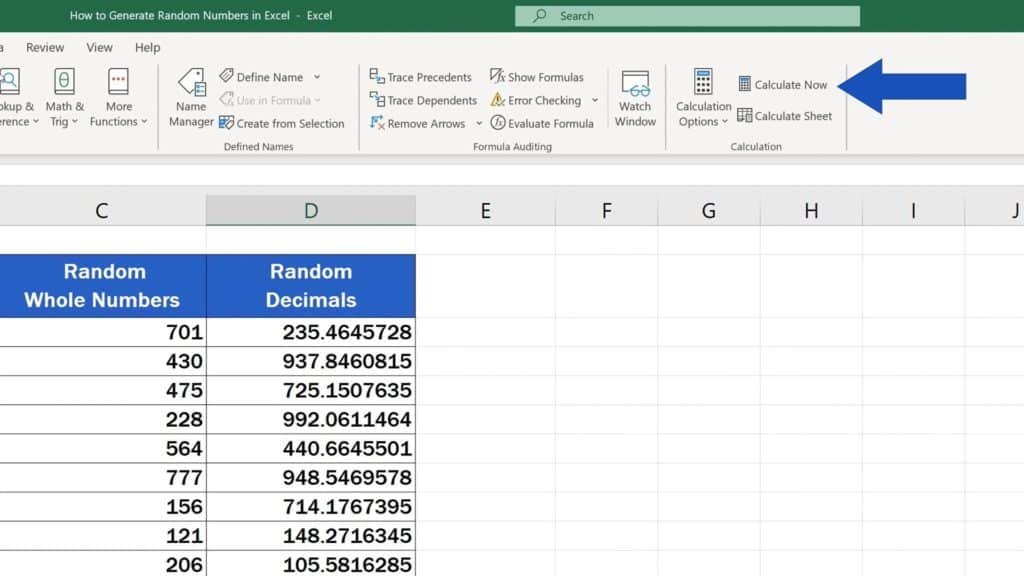
Press the F9 key on your keyboard. This forces a recalculation of all formulas in the workbook, including RAND(), RANDBETWEEN(), and RANDARRAY(). If you only want to recalculate a specific sheet, you can usually find an option under the "Formulas" tab to "Calculate Sheet."
Making Chance Your Ally: Next Steps with Excel Randomness
You've now explored the essential tools and practical applications of random numbers in Excel. From simulating market volatility for financial planning to generating robust test data for software development, the ability to introduce controlled variability is a profound asset. By understanding RAND(), RANDBETWEEN(), and RANDARRAY(), and critically, by mastering the art of freezing dynamic values, you gain a significant advantage in your data analysis and modeling efforts.
Don't just read about it; try it out. Open an Excel sheet, experiment with the formulas, and apply them to a real-world problem you're currently facing. You'll quickly discover how these seemingly simple functions can unlock powerful new capabilities, turning your spreadsheets into dynamic environments that help you make better, more informed decisions. The element of chance is no longer a mystery; it's a tool you can wield with precision.